
REST API
The REST API lets external applications control LEDVIZ over HTTP. Requests are sent like web page addresses and interpreted by LEDVIZ as commands. Applications such as vMix can use this to trigger a video wall clip together with matching content on the LED perimeter display.
Set up the connection
Section titled “Set up the connection”Open the settings dialog from Steuerung (Control) in the menu bar.
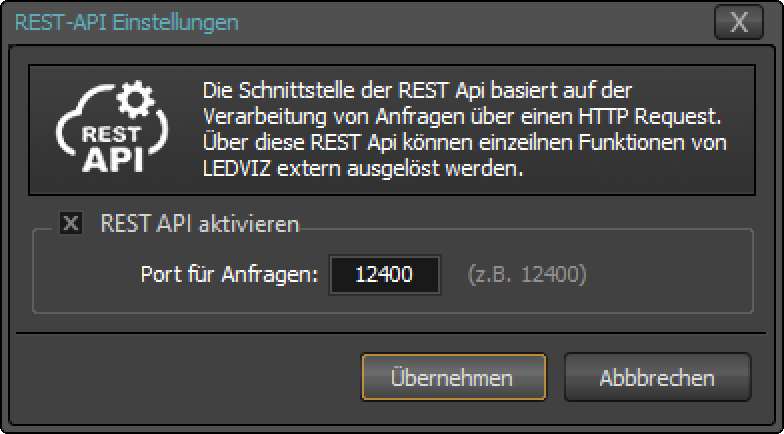
- Rest-API aktivieren (Enable REST API): opens the port for external control.
- Port: sets the HTTP port. The default is 12400.
External requests must reach LEDVIZ over HTTP on the configured port. The examples on this page use localhost and therefore address LEDVIZ on the same computer. When connecting from another computer, use the host address of the LEDVIZ computer.
Protocol: The examples use HTTP. The original interface reference documents HTTP without TLS. Use the protocol and port configured for your installation.
Start sequences
Section titled “Start sequences”http://localhost:12400/playhttp://localhost:12400/play/5http://localhost:12400/play/5?beispiel.xml| Request | Effect |
|---|---|
/play |
Triggers the Play button. |
/play/5 |
Starts sequence 5 in the current project. |
/play/5?beispiel.xml |
Starts sequence 5 in the specified project. |
You can also start a sequence using its DMX or MIDI identifier:
http://localhost:12400/play/dmx/25http://localhost:12400/play/midi/ABCSearch across projects: DMX and MIDI identifiers are always searched for in all projects.
Assigned keyboard shortcuts F1 to F20 and 0 to 9 can also be triggered. For example:
http://localhost:12400/key/F1Control playback
Section titled “Control playback”| Command | Effect |
|---|---|
http://localhost:12400/pause |
Pauses playback using the Pause button. |
http://localhost:12400/stop |
Stops playback using the Stop button. |
http://localhost:12400/continue |
Continues paused playback. |
http://localhost:12400/next |
Starts the next available sequence in the list. |
http://localhost:12400/prev |
Starts the previous available sequence in the list. |
http://localhost:12400/ftb |
Triggers Fade-to-Black to fade the output to black. |
Return to the original playlist
Section titled “Return to the original playlist”http://localhost:12400/resumeThis command ends a sequence started by a keyboard shortcut and returns to the original playlist position. The original sequence restarts from the beginning.
To reset overlays, use:
http://localhost:12400/overlay/resetAdjust brightness
Section titled “Adjust brightness”http://localhost:12400/brightness/???http://localhost:12400/brightness/uphttp://localhost:12400/brightness/downReplace ??? with a value from 0 to 100. This controls the global brightness slider and, according to the interface documentation, represents the percentage transparency of a black layer drawn over the output.
up and down change brightness by +5% and −5%, respectively. These relative commands support controls such as Stream Deck TurnWheels.
To address individual brightness zones, use /brightness1/ through /brightness8/. The same 0 to 100, up and down values apply.
Lock and unlock sequences
Section titled “Lock and unlock sequences”http://localhost:12400/sequence/lock/10http://localhost:12400/sequence/lock/10:3http://localhost:12400/sequence/unlock/10http://localhost:12400/sequence/unlock/10:3lock/10locks sequence 10 in the current preset.lock/10:3locks sequence 10 in preset 3.unlockunlocks the corresponding sequence.
To specify a preset, append a colon and its number to the sequence number.
Select presets
Section titled “Select presets”http://localhost:12400/preset/<preset>A preset groups the sequences selected on the right side of the LEDVIZ window. Replace <preset> with a number from 1 to 9.
The number remains the same when a preset is renamed. Selection by preset name is not supported.
Update LiveText
Section titled “Update LiveText”http://localhost:12400/tags/<tag-name>?<tag-value>Use the tag name without the leading # in the URL path. For the XML tag #TAG1, an example is http://localhost:12400/tags/TAG1?2%3A0. URL-encode special characters in the value.
Replace <tag-name> with the LiveText tag name and <tag-value> with the value to pass to LEDVIZ.
Set and recall CuePoints
Section titled “Set and recall CuePoints”CuePoints mark positions within a playlist. They let you return to a specific sequence, for example after a clip triggered by a keyboard shortcut.
To set a CuePoint, use /set/ followed by an alphanumeric name of your choice:
http://localhost:12400/cue/set/<cue-point-name>To recall it, place its name directly after /cue/:
http://localhost:12400/cue/<cue-point-name>The CuePoint already includes a reference to the relevant XML file. No additional XML parameter is required.
Current session only: CuePoints are not saved. The list is empty after a restart. Use DMX or MIDI identifiers when you need permanently assigned targets.
Enable and disable control modules
Section titled “Enable and disable control modules”true enables the specified module; false disables it.
http://localhost:12400/control/hippo/truehttp://localhost:12400/control/hippo/falsehttp://localhost:12400/control/dmx/truehttp://localhost:12400/control/dmx/falsehttp://localhost:12400/control/midi/truehttp://localhost:12400/control/midi/falseControl animation special functions
Section titled “Control animation special functions”If a sequence is waiting at a stop marker defined in its special functions, use this command to continue the animation:
http://localhost:12400/gfx/continueYou can also jump directly to markers defined in the special functions. This applies to markers both before and after the current playback position:
http://localhost:12400/gfx/jump/<stop>The supported values for <stop> are 1 to 4.
Replace loaded videos
Section titled “Replace loaded videos”http://localhost:12400/file/dmx/1/<filename>http://localhost:12400/file/midi/ABC/<filename>These requests change a loaded video using its DMX or MIDI identifier. Replace <filename> with the desired file name.
This reference is based on the existing LEDVIZ documentation. Some screenshots show an earlier application interface. Original documentation